Executing Commands as Custom Actions in WiX

<CustomAction Id="SetCommand"
              Property="CommandId"
              Value="&quot;command&quot; -p &quot;some parameter with spaces&quot;"
              Execute="immediate"/>
<CustomAction Id="CommandId"
              BinaryKey="WixCA"
              DllEntry="CAQuietExec"
              Execute="deferred"
              Return="check"/>
...
<InstallExecuteSequence>
    <Custom Action="SetCommand" After="CostFinalize"/>
    <Custom Action="CommandId" After="InstallExecute"/>
</InstallExecuteSequence>

The two Custom Actions work together to execute an arbitrary command. The first Custom Action sets the actual thing you want to execute as a property and the second executes it. You need to follow this pattern if your command relies on other installer properties. The Property name must be the same as the id of the second Custom Action and the actual executable needs to be in quotes!

The CAQuietExec function will execute your command without opening a command prompt. It’s part of the WixUtilExtension.

Tagged with: ,
Posted in WiX

Simulating Slow Network on Virtual Machines

We needed to simulate that our data frameworks will work over a slow network link. There is a VMWare configuration option to limit a virtual NIC to a certain bandwidth. Just edit the VM’s .vmx file and enter the speed in KB/s:

ethernet[n].rxbw.limit = 100
ethernet[n].txbw.limit = 100

There are a lot more configuration options you can include like drop rate, etc.

Tagged with: ,
Posted in Virtualization

Java Active Directory Authentication

I had to quickly add some AD authentication to one of our applications and it was becoming cumbersome at best using the built in Java LDAP libraries.  Most things had to have FQDNs, nested groups weren’t supported, the host name of a domain controller had to be known ahead of time, etc.

I stumbled upon a small stackoverflow post mentioning Waffle (Windows Authentication Framework) which supports Java and .Net.  For Java it uses JNA to let Windows do all the hard work at resolving domain controllers, available domains, etc.

It was crazy simple to authenticate a user:

		IWindowsAuthProvider provider = new WindowsAuthProviderImpl();

		try {
			provider.logonDomainUser(username, domain, password);
		} catch (Win32Exception ex) {
			log.info("user: " + username + " could not be authenticated");
			return false;
		}

		return true;

Unfortunately Waffle isn’t in a Maven repository anywhere.  I created the following pom to host on our instance of Nexus:

<project>
	<modelVersion>4.0.0</modelVersion>
	<groupId>${organization}.thirdparty</groupId>
	<artifactId>waffle-jna</artifactId>
	<version>1.4</version>
	<dependencies>
		<dependency>
			<groupId>commons-logging</groupId>
			<artifactId>commons-logging</artifactId>
			<version>1.1.1</version>
		</dependency>
		<dependency>
			<groupId>com.google.guava</groupId>
			<artifactId>guava</artifactId>
			<version>11.0.2</version>
		</dependency>
		<dependency>
			<groupId>net.java.dev.jna</groupId>
			<artifactId>jna</artifactId>
			<version>3.3.0</version>
		</dependency>
		<dependency>
			<groupId>net.java.dev.jna</groupId>
			<artifactId>jna</artifactId>
			<version>3.3.0</version>
			<classifier>platform</classifier>
		</dependency>
	<dependencies>
<project>
Tagged with: , , ,
Posted in Active Directory, Java

Generate Installer Product IDs Automatically

I had installed some scripting in Jenkins to generate a random guid on each build of our installers and inject it through maven into the WiX source files.  It turns out WiX supports that natively by just placing a ‘*’ for the ID.  A new guid will be generated every time the msi is built.  UpgradeCode as a ‘*’ is a bit different and will be generated only if file path changes.

Tagged with:
Posted in WiX

A Better Grocery List

I’d like to get more into mobile development and what better way than to just do it.  I was trying to figure out a decent idea that in the end could actually end up in an app store.  A game would be great but I don’t have the graphic design skill to pull that off at all.  I thought about the last time I tried to use an iPhone grocery list and it wasn’t ideal.  So how would I try to improve it?  Here are the main features I was thinking about:

  • Allow sharing and contributions from any device.  The wife should be able to think of something and have it end up on my list and vice versa.  It’s worthless if we have to keep the usual list on the refrigerator and dump it into our phones.  This to me would be a huge improvement.
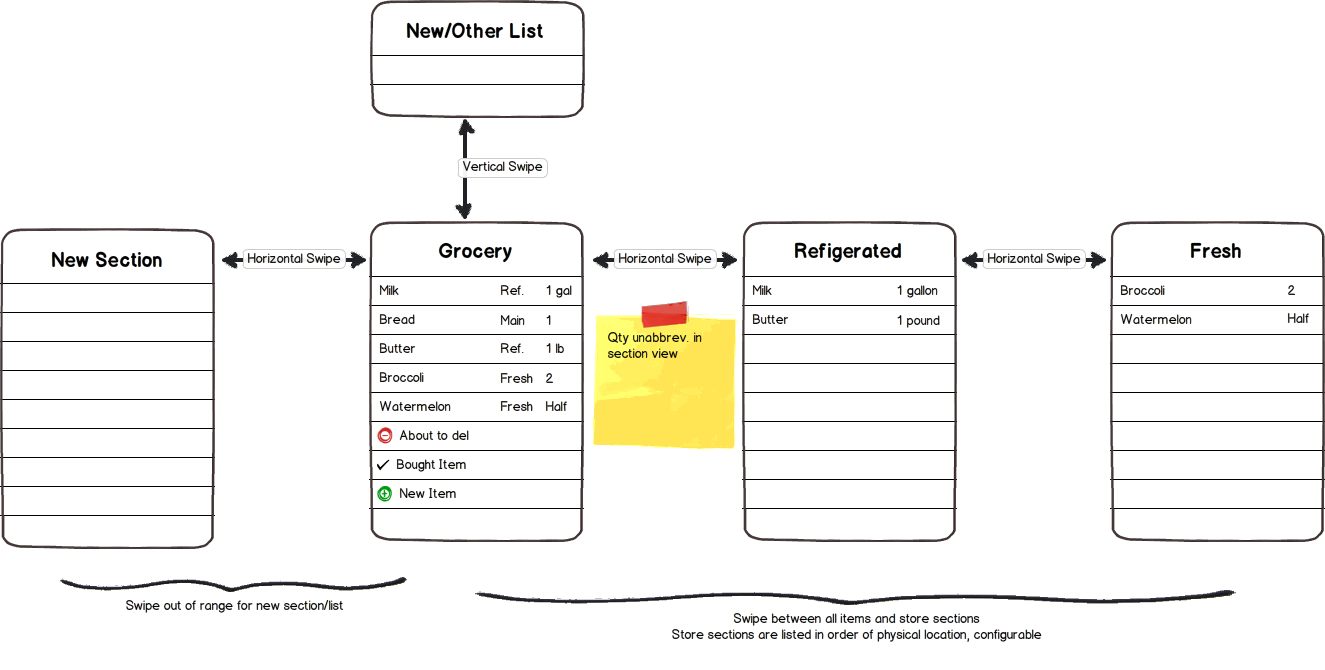
  • Sort and show items by store section.  Right now I write down a number indicating the section: 1-Fresh, 2-Refrigerated, 3-Main, 4-Deli, etc.  I want to easily swipe between store sections showing only those items while I walk from section to section.
  • Allow entering of quantity.  It has to be flexible enough to recognize quickly written units.  I should be able to enter “1 gallon of Milk” and end up with it understanding “Milk, 1 gallon.”  No drop down lists or selectors, those take way too long.
  • Doesn’t have to be limited to grocery lists…

What would it look like?  Here’s something I drew up pretty quickly.  It shows the last two features at least.

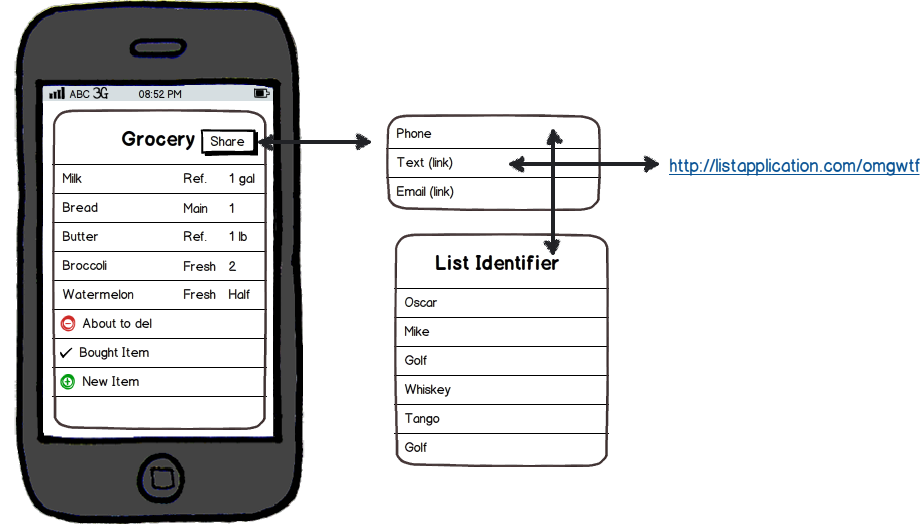
What about sharing lists?  It has to be really easy.  No email, no exiting the application.  I have to be able to tell my wife in 10 seconds or so how to get it if she’s already in the store.  This will require it be backed by a web app or at least a database, kinda like instagr.am which you can’t really use on the web directly.  I ended up thinking I could tell her an identifier over the phone or send her a link (can you link directly into an app?).


Tagged with: ,
Posted in iPhone

Automating WiX Installer Builds with Maven: Actual Automation

Alright, now for how we actually automate the installer build!  Everything mentioned here lives in the ‘installer’ profile.  This allows your developers to still run the package command without invoking a lengthy installer build.

Required Properties

There is a set of required properties that can be set in your application’s pom or some parent pom.

  • installer.product: The name of your application.  This is what will appear in add/remove programs, etc.
  • installer.productCode: A guid to use as a product code only when building locally on a developer machine. Jenkins will inject a random product code on each build.
  • installer.upgradeCode: The guid upgrade code for your application.  This is what uniquely identifies your application across all versions.  It should never change.
  • installer.upgradeableWixFiles: A comma-delimited list of WiX files names that the build process will run paraffin on before creating the installer.  It is assumed all of these files live in a standard directory.
  • installer.wixFiles: A comma-delimited list of WiX files that the build process will not run paraffin on but will still include in the installer.
  • installer.manufacturer: Your company, included in add/remove programs, etc.
  • environment: The default environment to build, we use test.
  • installer.windows_installer_version: The minimum required Windows Installer version, depends on what features you use.

So now that we’ve set our required properties, let’s get into the required plugins.

Required Plugins

org.codehaus.mojo:buildnumber-maven-plugin:1.0

This plugin creates a timestamp build number that will be appended to the actual pom version of our application.

<execution>
  <phase>package</phase>
  <goals>
    <goal>create</goal>
  </goals>
</execution>
<configuration>
  <format>{0, date,yyDDD.HHmm}</format>
  <items>
    <item>timestamp</item>
  </items>
</configuration>

org.codehaus.mojo:build-helper-maven-plugin:1.7

The build helper plugin let’s parse out the major and minor versions of our application.

<execution>
  <id>parse-version</id>
  <phase>package</phase>
  <goals>
    <goal>parse-version</goal>
  </goals>
</execution>

org.apache.maven.plugins:maven-assembly-plugin

The assembly plugin will assemble our application.  We keep our configuration properties for injection in standard folders, an “-all” file for all environments and another file for each environment we deploy to.  The assembly descriptor for each application is also kept in a standard location.

<configuration>
  <filters>
    <filter>${basedir}/src/main/assembly/configuration-all.properties</filter>
    <filter>${basedir}/src/main/assembly/configuration-${environment}.properties</filter>
  </filters>
  <descriptors>
    <descriptor>${basedir}/src/main/assembly/assembly.xml</descriptor>
  </descriptors>
  <appendAssemblyId>false</appendAssemblyId>
</configuration>
<execution>
  <id>make-assembly</id>
  <phase>package</phase>
  <goals>
    <goal>single</goal>
  </goals>
</execution>

org.apache.maven.plugins:maven-resources-plugin:2.5

The resources plugin copies all of our WiX files after filtering them.  As a convention, all files under the ‘auto’ folder will have paraffin run on them before being build.  The ‘manual’ folder is for WiX files that will fairly infrequently.

<executions>
  <execution>
    <id>copy-wix-files</id>
    <phase>package</phase>
    <goals>
      <goal>copy-resources</goal>
    </goals>
    <configuration>
      <escapeWindowsPaths>false</escapeWindowsPaths>
      <outputDirectory>${project.build.directory}/installer_temp</outputDirectory>
      <resources>
        <resource>
          <directory>${basedir}/src/main/wix/wxs/auto</directory>
          <filtering>true</filtering>
        </resource>
        <resource>
          <directory>${basedir}/src/main/wix/wxs/manual</directory>
          <filtering>true</filtering>
        </resource>
      </resources>
    </configuration>
  </execution>
</executions>

org.codehaus.gmaven:gmaven-plugin:1.3

This is the really cool part.  We use a groovy script to call the WiX binaries (candle, light, paraffin) and build the installer.  This is where we use the WiX file listings we provided as properties.

This is the execution of the plugin:

<execution>
  <id>groovy-magic</id>
  <phase>package</phase>
  <goals>
    <goal>execute</goal>
  </goals>
  <configuration>
    <![CDATA[ source code below ]]>
  </configuration>
</execution>

And now the actual groovy script.  Sorry if it’s rough, it’s my first groovy script…

def updateableFiles = project.properties['installer.updateableWixFiles'].split(",")
def ant = new AntBuilder()
for ( file in updateableFiles ) {
  log.info("running paraffin on " + file)
  ant.exec(failonerror: "true",
  executable: "paraffin",
  dir: project.build.directory + "\\installer_temp") {
    arg(line:"-update " + file )
  }

  def fileToMove = file.substring(0, (file.lastIndexOf('.') + 1)) + "PARAFFIN"
  log.info("moving " + fileToMove + " to " + file)
  ant.copy(file: project.build.directory + "\\installer_temp\\" + fileToMove,
    tofile: project.build.directory + "\\installer_temp\\" + file,
    overwrite: 'true')

  def templateFile = file.substring(0, (file.lastIndexOf('.'))) + "Template.xsl"
  templateFile = pom.basedir.getAbsolutePath() + "\\src\\main\\wix\\xsl\\" + templateFile
  if ( new File(templateFile).exists()) {
    log.info("running msxsl on " + file + " with " + templateFile)
    ant.exec(failonerror: "true",
    executable: "msxsl",
    dir: project.build.directory + "\\installer_temp") {
      arg(line: "\"" + file + "\" \"" + templateFile +"\" -o \"" + project.build.directory + "\\installer_temp\\" + file + "\"")
    }
} else {
  log.info("template file for " + file + " at " + templateFile + " did not exist")
  }
}

def filesToCandle = project.properties['installer.wixFiles'].replace(',',' ') + " ";
filesToCandle += project.properties['installer.updateableWixFiles'].replace(',',' ')
log.info("running candle on " + filesToCandle);
ant.exec(failonerror: "true",
executable: "candle",
  dir: project.build.directory + "\\installer_temp") {
    arg(line: filesToCandle)
  }

def filesToLight = ""
for ( file in filesToCandle.split(" ")) {
  filesToLight += "\"" + project.build.directory + "\\installer_temp\\" + file.substring(0, (file.lastIndexOf('.') + 1)) + "wixobj\" "
}
log.info("running light on " + filesToLight)
ant.exec(failonerror: "true",
  executable: "light",
  dir: project.build.directory + "\\" + project.build.finalName + "\\" + project.build.finalName) {
    arg(line: "-out \"" + project.build.directory + "\\installer\\" +
      project.properties['installer.product'] + "-" +
      project.properties["environment"] + "-" +
      project.properties["parsedVersion.majorVersion"] + "." +
      project.properties["parsedVersion.minorVersion"] + "." +
      project.properties["buildNumber"] + ".msi\" " + filesToLight)
    }

The only part that probably isn’t clear is the template file. For each WiX source file you can include, by convention, an xsl file that when applied will turn various Windows Installer features on or off. We use it make sure DiskIds and KeyPaths are set. Here is a sample xsl file we use on our lib folders:

<xsl:stylesheet version="1.0" xmlns:xsl="http://www.w3.org/1999/XSL/Transform"
 xmlns:wi="http://schemas.microsoft.com/wix/2006/wi"
 exclude-result-prefixes="xsl wi">
  <xsl:template match="node()|@*">
    <xsl:copy>
      <xsl:apply-templates select="node() | @*" />
    </xsl:copy>
  </xsl:template>

  <xsl:template match="wi:Component">
    <Component xmlns="http://schemas.microsoft.com/wix/2006/wi">
      <xsl:attribute name="Id"><xsl:value-of select="@Id" /></xsl:attribute>
      <xsl:attribute name="Guid"><xsl:value-of select="@Guid" /></xsl:attribute>
      <xsl:attribute name="KeyPath">no</xsl:attribute>
      <xsl:attribute name="UninstallWhenSuperseded">yes</xsl:attribute>
      <!-- <xsl:attribute name="DiskId"><xsl:value-of select="@DiskId" /></xsl:attribute> -->
      <xsl:attribute name="DiskId">1</xsl:attribute>
      <xsl:apply-templates select="*|node()" />
    </Component>
  </xsl:template>

  <xsl:template match="wi:File">
    <File xmlns="http://schemas.microsoft.com/wix/2006/wi">
      <xsl:attribute name="Id"><xsl:value-of select="@Id" /></xsl:attribute>
      <xsl:attribute name="KeyPath">yes</xsl:attribute>
      <xsl:attribute name="Source"><xsl:value-of select="@Source" /></xsl:attribute>
    </File>
  </xsl:template>
</xsl:stylesheet>

My next post will be the last one in this series.  It’ll show how Jenkins is set up to build all of our installers!

Tagged with: , , ,
Posted in Java, Jenkins, Maven, WiX

Automating WiX Installer Builds with Maven: Windows Installer Xml

The next step in creating an installer after assembling the application is generating the actual msi.  There are a couple issues that need to be addressed when setting up the framework though.

  1. The installer may include jars that do not have version information or are snapshot releases.  This means that we have to be careful in how we create patches that upgrade files of the same name.
  2. We can’t leave unused or old jars in the lib folder.  If this was .Net, we wouldn’t have to worry as much about stray dlls but everything in the classpath is loaded.  That means the first jar wins if there’s a conflict.
  3. There could be a lot of dependencies and editing the installer source files on every change is a bit unrealistic.

First, let’s create the skeleton of our application.  Some cool things to note:

  • All of the important application information is pulled out of its pom.  This includes the Windows Installer upgrade code which should never change and a static product code to use when we build the application locally.  Jenkins injects a new product code every time so patches (as major upgrades) can be generated easily.
  • The maven build number and build helper plugins are used to generate a version number with every build.  They parse out the major and minor versions of our application as well as add a time-based build number.  Our versions end up being major.minor.yyDDD.HHmm.
  • The application is invoked with a batch file that is also run when anyone logs into the computer.
<?xml version="1.0" encoding="UTF-8"?>
<Wix xmlns="http://schemas.microsoft.com/wix/2006/wi">
 <Product Id="${installer.productCode}" Name="${installer.product}"
 Language="1033"
 Version="${parsedVersion.majorVersion}.${parsedVersion.minorVersion}.${buildNumber}"
 Manufacturer="${installer.manufacturer}" UpgradeCode="${installer.upgradeCode}">

<Package InstallerVersion="${installer.windows_installer_version}"
 Compressed="yes" InstallScope="perMachine" />

<Media Id="1" Cabinet="media1.cab" EmbedCab="yes" />

<Directory Id="TARGETDIR" Name="SourceDir">
 <Directory Id="DesktopFolder" Name="Desktop" />
 <Directory Id="ProgramMenuFolder">
 <Directory Id="ApplicationProgramsFolder" Name="${installer.manufacturer}" />
 </Directory>
 <Directory Id="ProgramFilesFolder">
 <Directory Id="manufacturer_dir" Name="${installer.manufacturer}">
 <Directory Id="INSTALLLOCATION" Name="${installer.product}">
 <Directory Id="dir_logs" Name="logs">
 <Component Id="cmp_logs_dir" Guid="guid">
 <CreateFolder></CreateFolder>
 </Component>
 </Directory>
 </Directory>
 </Directory>
 <Component Id="cmp_version_txt_1"
 UninstallWhenSuperseded="yes" Guid="guid">
 <File Id="file_version_txt_1" Source="version.txt" KeyPath="yes" />
 </Component>
 <Component Id="cmp_start_bat_1" UninstallWhenSuperseded="yes"
 Guid="guid">
 <File Id="file_start_bat_1" Source="start.bat" KeyPath="yes">
 <Shortcut Advertise="yes" Id="shtct_start_bat_1"
 Directory="DesktopFolder" Name="${installer.product}"
 WorkingDirectory="INSTALLLOCATION" Description="Start ${installer.product}" />
 <Shortcut Advertise="yes" Id="shtct_start_bat_2"
 Directory="ApplicationProgramsFolder" Name="${installer.product}"
 WorkingDirectory="INSTALLLOCATION" Description="Start ${installer.product}" />
 </File>
 <RemoveFolder Id='ApplicationProgramsFolderRemove'
 Directory='ApplicationProgramsFolder' On='uninstall' />
 </Component>
 <Component Id="cmp_AutoStart" Guid="guid">
 <RegistryValue Action="write" Root="HKMU"
 Key="Software\Microsoft\Windows\CurrentVersion\Run" Name="VEView"
 Value="[INSTALLLOCATION]start.bat" Type="string" KeyPath="yes" />
 </Component>
 </Directory>
 </Directory>
 </Directory>
 </Directory>
</Product>
</Wix>

Now the most important directory, the lib folder. We found the best way to handle an ever-changing list of dependencies was to generate the lib folder wxs source file once and let paraffin update it automatically with every build. Some very important things to note:

  • UninstallWhenSuperseded should be set for every component.  This means that when paraffin removes a component since it doesn’t see it anymore in our assembled application’s lib folder, it will be completely removed fixing our stray jar file problem.
  • One file per component is the standard.
  • The directory paraffin looks for files is filtered in at build time.  Everything is automated!
</pre>
<?xml version="1.0" encoding="utf-8"?>
<Wix xmlns="http://schemas.microsoft.com/wix/2006/wi">
 <!--<CommandLineOptions>
 <Producer>Autogenerated by Paraffin - Wintellect - John Robbins - john@wintellect.com</Producer>
 <WARNING>Manual changes to this file may cause incorrect behavior.</WARNING>
 <CreatedOn>1/16/2012 11:42 AM</CreatedOn>
 <Directory>${project.build.directory}\${project.build.finalName}\${project.build.finalName}\lib</Directory>
 <Custom>lib-dir</Custom>
 <DirAlias>lib\</DirAlias>
 <Increment>1</Increment>
 <Guids>true</Guids>
 <Win64>false</Win64>
 <Multiple>false</Multiple>
 <Norecurse>false</Norecurse>
 <ExtensionExcludes>
 <Ext>.ZIP</Ext>
 </ExtensionExcludes>
 <DirExcludes />
<NextDirectoryNumber>1</NextDirectoryNumber>
 <NextComponentNumber>53</NextComponentNumber>
</CommandLineOptions>-->
 <Fragment>
 <ComponentGroup Id="group_lib_dir">
 <ComponentRef Id="comp_lib_dir_0"></ComponentRef>
 <ComponentRef Id="comp_lib_dir_1"></ComponentRef>
 <ComponentRef Id="comp_lib_dir_2"></ComponentRef>
 </ComponentGroup>
 <DirectoryRef Id="INSTALLLOCATION">
 <Directory Id="dir_lib_0" Name="lib">
 <Component Id="comp_lib_dir_0" Guid="guid" KeyPath="no" UninstallWhenSuperseded="yes" DiskId="1">
 <File Id="file_lib_dir_0" KeyPath="yes" Source="lib\\activeio-core-3.1.2.jar" />
 </Component>
 <Component Id="comp_lib_dir_1" Guid="guid" KeyPath="no" UninstallWhenSuperseded="yes" DiskId="1">
 <File Id="file_lib_dir_1" KeyPath="yes" Source="lib\\activemq-camel-5.5.1.jar" />
 </Component>
 <Component Id="comp_lib_dir_2" Guid="guid" KeyPath="no" UninstallWhenSuperseded="yes" DiskId="1">
 <File Id="file_lib_dir_2" KeyPath="yes" Source="lib\\activemq-core-5.5.1.jar" />
 </Component>
 </Directory>
 </DirectoryRef>
 </Fragment>
</Wix>

We generally have a automatically updated WiX source files for the conf and lib folders since they can change the most.  The build process also supports any number of wxs files so additional files with the application’s images, sounds, etc. is no problem.

The next post will detail how the process is actually automated.

Tagged with: , , ,
Posted in Java, Jenkins, Maven, WiX

Automating WiX Installer Builds with Maven: Assembling Your Application

The Concept

The first step in getting an installer built is to be able to construct what will roughly be the folder structure of your application.  Out of trial and error, or maybe out of a Java convention I don’t know about, we ended up with a folder structure we use in every project.  This folder structure has been used in building Windows services as well as desktop applications and has worked out pretty well.

Standard Folders

  • lib: all jars and dependency jars go here.  We don’t uber-jar anything so small patches can be applied later over the network.
  • conf: all configuration files.  It’s better to have one place the customer has to go to to configure your product.  Only configuration files that will never be touched can be included as resources inside jars.
  • logs: all log files will be written here.  Again, it’s great to have one place the customer has to go to look at logs whether it’s one log file, or several.

Other Folders

  • images, sounds, etc.: whatever your application needs to run.

Usually we put lib and conf on the classpath as well as any other folders that contain things we need like images, etc.  This means we don’t have to hardcode folder references or anything like that.  Everything is loaded as a classpath resource!

The Maven Assembly Plugin

All of our projects inherit from one root pom.  This root pom contains a lot of stuff like what tests and reports to run, managed versions of libraries, etc.  It also contains our standard build process for installers under a separate profile.  All a developer has to do is call

 mvn package -Pinstaller 

to build the installer.  Jenkins also calls the same profile with some extra parameters to get a properly versioned installer.

Assembly Descriptor

Every project that can or should be assembled has an assembly descriptor at a standard location.

${basedir}\src\main\assembly\assembly.xml

It’s up to the project’s developer to add whatever files the project needs to run to this descriptor.

Configuration

The build process also expects some standard configuration stuff to be around.  Each configuration file can be filtered to include environment (test vs. production vs. etc.) specific settings.  The result is you can build a versioned installer for test as easily as you can for production or your staging environment.

Including the Assembly Plugin

<project>
  <profiles>
    <id>installer</id>
    <properties>
      <environment>test</environment> <!-- the default environment to build -->
      <installer.manufacturer>Company</installer.manufacturer> <!-- your company, used later in the WiX source files -->
      <installer.windows_installer_version>405</installer.windows_installer_version> <!-- the minimum Windows Installer version all our projects require -->
    </properties>
    <build>
      <plugins>
        <plugin>
          <artifactId>maven-assembly-plugin</artifactId>
          <configuration>
            <filters>
              <filter>${basedir}\src\main\assembly\configuration-all.properties</filter> <!-- include some common configuration properties -->
              <filter>${basedir}\src\main\assembly\configuration-${environment}.properties</filter> <!-- include the current environment's properties -->
            </filters>
            <descriptors>
              <descriptor>${basedir}\src\main\assembly\assembly.xml</descriptor>
            </descriptors>
            <appendAssemblyId>false</appendAssemblyId> <!-- don't append the assembly id to the output directory -->
          </configuration>
          <executions>
            <execution>
              <id>make-assembly</id>
              <phase>package</phase>
              <goals>
                <goal>single</goal>
              </goals>
            </execution>
          </executions>
        </plugin>
      </plugins>
    </build>
  </profiles>
</project>

A Sample Assembly Descriptor

This is a sample assembly descriptor.  It’s pretty self explanatory, everything gets copied out to the target directory.

<assembly>
<id>some application</id>
<formats>
<format>dir</format> <!-- we're creating a directory structure -->
</formats>
<files>
<file>
<source>${basedir}\conf\someConfiguration.properties</source>
<outputDirectory>/conf</outputDirectory>
<filtered>true</filtered> <!-- filter it so it has environment configuration stuff -->
</file></pre>
<file>
<source>${basedir}\src\main\bat\start.bat</source> <!-- a batch file to start the application, icons will later point to this -->
<outputDirectory>/</outputDirectory>
<filtered>false</filtered>
</file>
</files>
<fileSets>
<fileSet>
<directory>${basedir}\native\windows\amd64</directory> <!-- some native libraries required to run the app -->
<outputDirectory>/native/windows/amd64</outputDirectory>
<includes>
<include>*.dll</include>
</includes>
</fileSet>
<fileSet>
<directory>${basedir}\native\windows\x86</directory>
<outputDirectory>/native/windows/x86</outputDirectory>
<includes>
<include>*.dll</include>
</includes>
</fileSet>
</fileSets>
<dependencySets>
<dependencySet> <!-- include all the dependencies of the application -->
<outputDirectory>/lib</outputDirectory>
<unpack>false</unpack>
</dependencySet>
</dependencySets>
</assembly>

Next Post

I hope to cover the cool WiX stuff we’ve done in the next post soon!  Here’s the next post!

Tagged with: , , ,
Posted in Java, Jenkins, Maven

Automating WiX Installer Builds with Maven

Recently, I worked towards automating the build of all our installers after we integrated Maven into our Java-based projects. We standardized all of our installers on WiX which has proven to be a great tool to reliably build installers.

The rough steps of the build process are:

  1. Have the maven assembly plugin assemble the folder structure of what the application folder will contain. The structure loosely contains a ‘lib’ folder for all the jars, a ‘conf’ folder for configuration files, and a ‘logs’ folder.
  2. Run the third-party paraffin tool to update the WiX source files so the latest version of each jar, snapshot or release, is captured
  3. Pass the WiX source files through some xsl transforms to make sure certain features are turned on, like fully removing uninstalled components on upgrade
  4. Run the WiX candle and light executables on the folder structure to create the actual msi

What has resulted, with the help of Jenkins as our CI server, is a completely automated build of every one of our products with correct versioning, etc. We can check in code, wait 10 minutes, and have a new release appear in a folder share!

Here are all the posts so far:

Tagged with: , , ,
Posted in Java, Jenkins, Maven, WiX

Command Prompt (or other executable) under System Account

If you have to debug or just run something under the System account, you can start a prompt with the at command.  Just schedule cmd to start one minute in the future and allow it to interact with the desktop.  This doesn’t work on Vista or 7 though, unfortunately.

at time /interactive exe
at 1231 /interactive cmd
Posted in Windows